
Transparent PNG
Download an alpha-channel cutout that you can place into another design.
For catalogs and online stores
Separate the product from its surroundings, review the cutout, and export it on transparent, white, or colored backgrounds.
Upload a product photoWe do not keep a permanent copy; the AI provider may retain files temporarily as described in our privacy policy.
Try the cutout first, then choose the background in the editor.
HEIC / HEIF · Prepare a copy of your photo
or drag an image here
you can also paste an image or a URL
JPG, PNG, or WebP · Max 10 MB · Free previews are subject to daily site capacity.
Don't have an image? Try one of these examples:
The image is sent to the configured provider only when you start the process.
Use the same cutout in your store, marketplace, or catalog while controlling the final background and format.
Download an alpha-channel cutout that you can place into another design.
Choose pure white, a color, or your own image without processing the product again.
With 1 point, the original option keeps the dimensions returned by the cutout, with no added downscaling.
Use a sharp photo with the whole product visible, even lighting, and enough contrast against the background.
Zoom in on glass, reflections, handles, and fine edges; erase or restore if you find halos or missing detail.
Keep canvas size and background consistent across your catalog. Remember settings in this browser or save one to your account; export multiple sizes from the same cutout without spending more credits.
Sharp photos with the complete product and visible contrast work best. Glass and transparent areas may need manual refinement.
Yes. Batch mode accepts up to 20 images, processes up to 2 at once, and creates a ZIP.
Synthetic inputs and actual outputs, including product photos and difficult cases. Change the background and zoom in to inspect details.
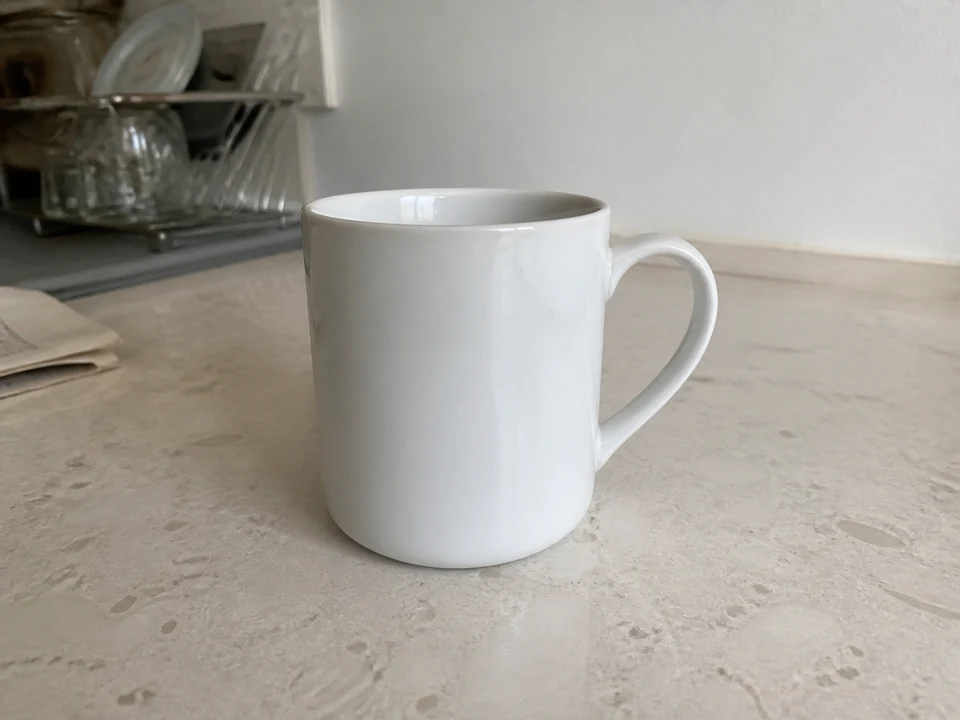
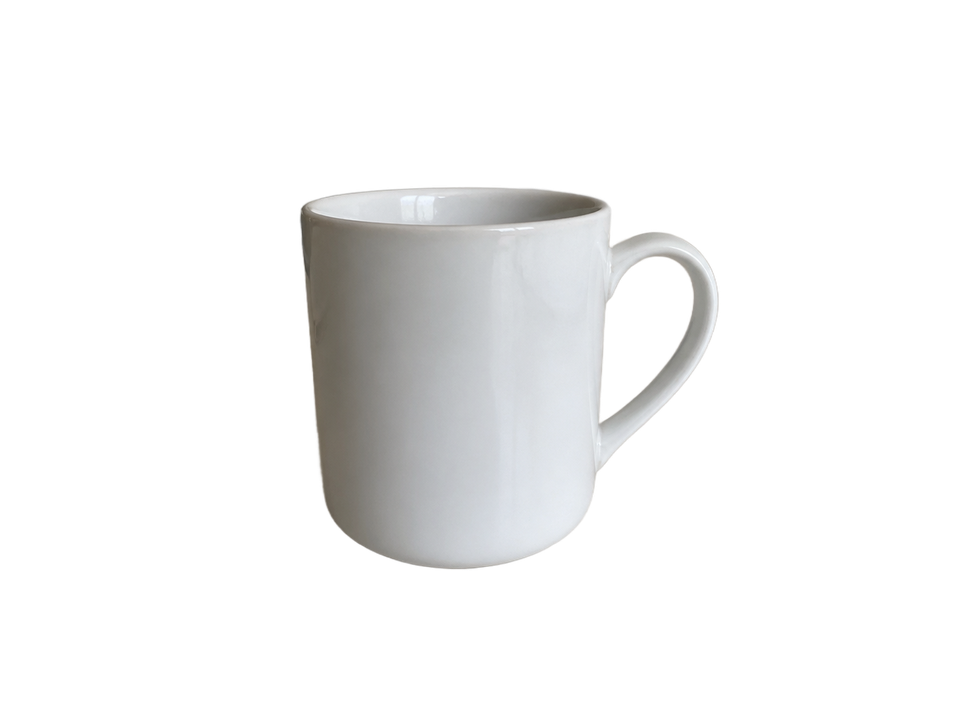
Check the white rim and inside the handle against both backgrounds.
AI-generated input · actual model output · no manual retouching
Tested August 30, 2026 with the standard 851 Labs model. These examples do not represent every user photo.
Try the cutout first, then choose the background in the editor.
Remove the background